
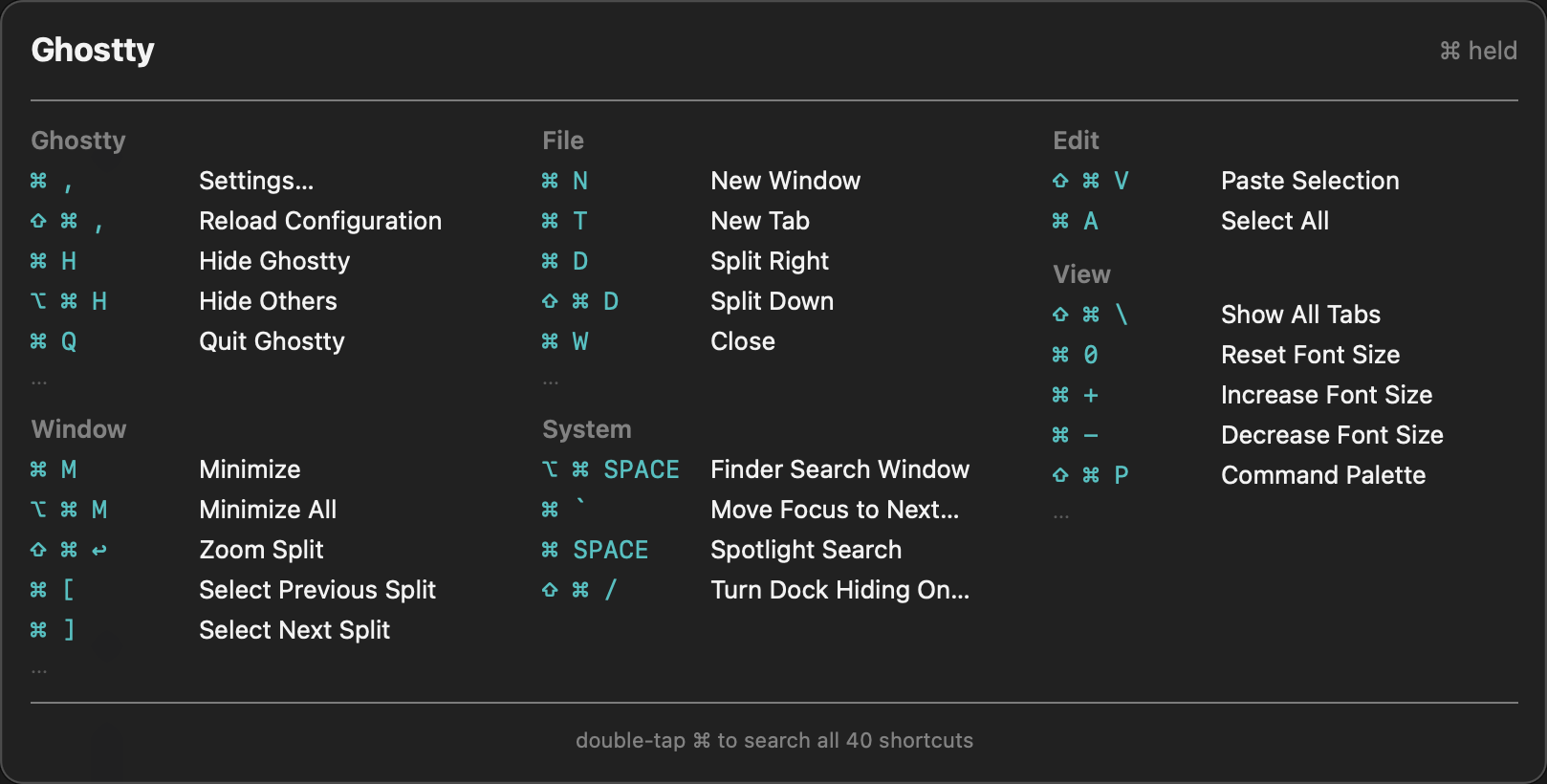
Speed View
Long-press a modifier key to see the current app's shortcuts at a glance, grouped by menu.
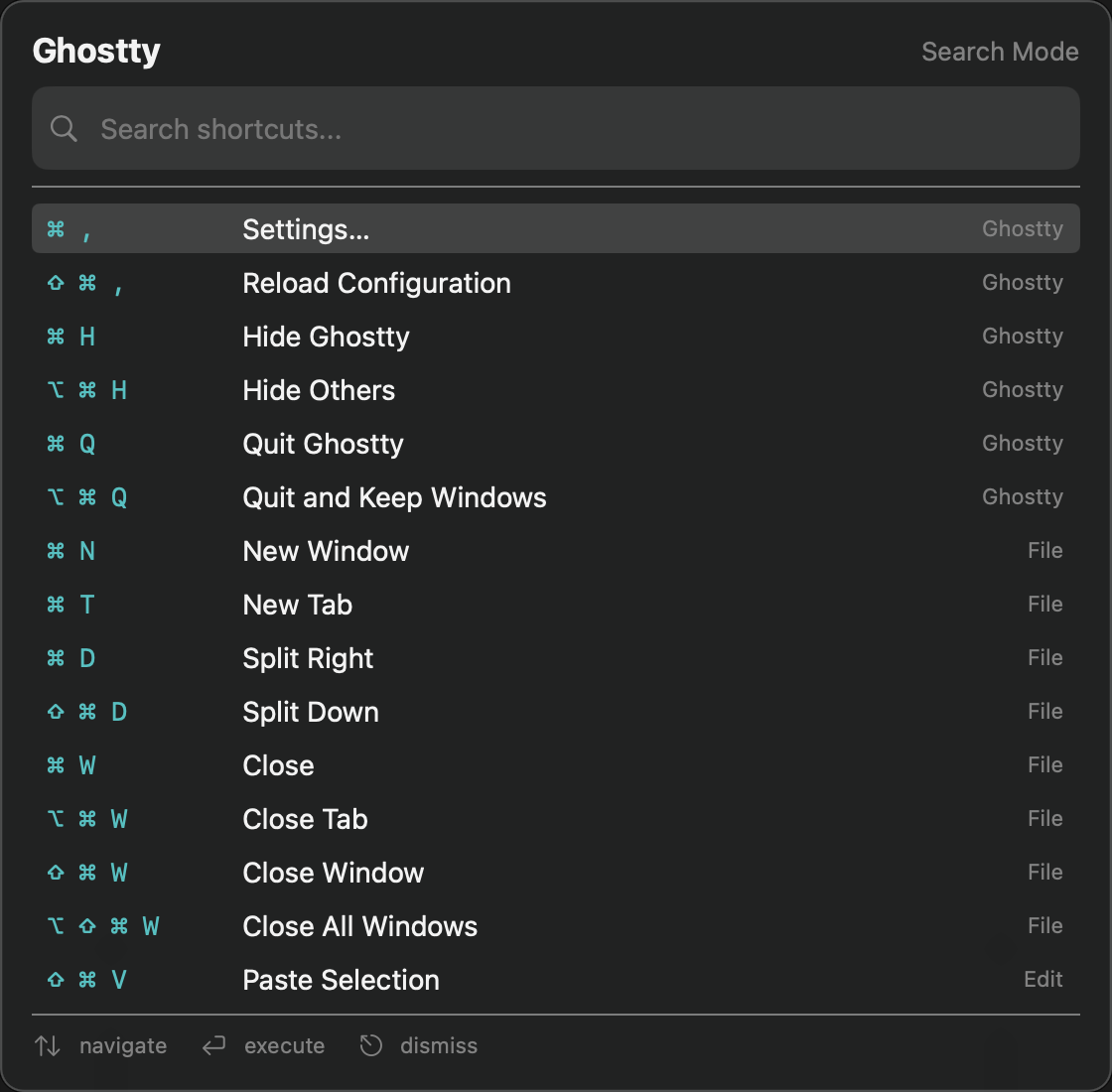
Search Mode
Double-tap a modifier to pin the panel and fuzzy-search across all shortcuts. Arrow keys to navigate, Enter to execute.
Features
Everything you need, nothing you don't.
Speed View
Long-press Cmd, Option, or Ctrl to see a compact overlay of the current app's shortcuts grouped by menu. Release the key to dismiss — zero friction.
Search Mode
Double-tap a modifier key to pin the panel and search all shortcuts with fuzzy matching. Arrow keys to navigate, Enter to execute, Esc to dismiss.
System + App Shortcuts
Reads both app menu bar shortcuts via Accessibility API and macOS system shortcuts — Spotlight, Mission Control, Spaces, Screenshots, and more — all in one unified view.
Smart Ranking
Recently used shortcuts float to the top. Multi-tier fuzzy matching scores exact, prefix, substring, and character-sequence matches for fast discovery.
Fully Customizable
4 custom colors (key, title, label, accent), panel opacity (30–100%), font size (9–20pt), position (center or corners), modifier key selection, and timing thresholds.
Global Hotkey
Set a custom keyboard shortcut to open search mode from anywhere. Per-app exclusions let you disable it in games or specific apps.
How It Works
Short Dics lives in your menu bar and responds to modifier key gestures — no extra keyboard shortcut to remember.
Speed View: Long-press any modifier key (Cmd, Option, or Ctrl) to see a compact overlay of the frontmost app’s keyboard shortcuts, grouped by menu. The view shows recently-used shortcuts first and limits each group to keep things scannable. Release the modifier key and the overlay disappears instantly.
Search Mode: Double-tap a modifier key to pin the panel in place. A search field appears — type to fuzzy-search across all shortcuts (app and system). Arrow keys navigate, Enter executes the selected shortcut in the target app, and Esc dismisses. You can also set a dedicated global hotkey to jump straight into search mode.
Short Dics tracks which shortcuts you use most and surfaces them at the top. Four customizable colors, adjustable opacity, and flexible positioning let you make the overlay feel like a natural part of your desktop.
Pricing
Simple, transparent pricing.
Support the Project
If you find this app useful, consider buying me a coffee!


Frequently Asked Questions
Which apps are supported?
Short Dics works with any macOS app that exposes menu bar shortcuts. It reads shortcuts dynamically via the Accessibility API — no pre-configuration needed.
Does it need Accessibility permission?
Yes. Short Dics uses the Accessibility API to read app menu bar shortcuts and CGEventTap to detect modifier key presses. macOS will prompt you to grant permission on first launch.
Can I customize which modifier keys trigger it?
Yes — you can independently enable or disable Command, Option, and Control as trigger keys. You can also fine-tune the long-press delay (0.3–1.0s) and double-tap detection window (0.2–0.5s).
Does it work in full-screen apps?
Yes. Short Dics uses a floating NSPanel that appears above full-screen windows.
What about system shortcuts?
Short Dics reads macOS system shortcuts (Spotlight, Mission Control, Spaces, Screenshots, etc.) from system preferences and displays them alongside app shortcuts in a unified view.